Blog/
Building a local Open Integration Engine 4.7.0 lab on Debian
A practical Docker lab on Debian: build OIE 4.7.0, layer community plugins, open Web Admin, and send a synthetic HL7 ADT over MLLP until MSA|AA smiles back.
- Open Integration Engine
- HL7
- Docker
- Debian
- Healthcare interoperability
Author: Gus Martin
Lab date: 15 November 2026
Engine: Eclipse Open Integration Engine (OIE) v4.7.0
Audience: integration engineers, open-source curious ops folks, and anyone who likes turning a weekend into a tidy Docker lab
Companion files: diagrams, screenshots, and version pins ship with this post under /blog/oie-docker-lab-2026/
Table of contents
- Why I did this (and where I stand)
- What you will end up with
- Lab machine
- Architecture at a glance
- Prerequisites
- Step-by-step: from empty folder to running engine
- Plugins, one by one
- HL7 ADT over MLLP (the fun bit)
- A short tour of the Web Administrator
- Tips we met on the road (and how we handled them)
- Acceptance checklist
- Suggestions, questions, and next ideas
- References
1. Why I did this (and where I stand)
I am happily on the open-source and free-software side of the fence. I run Debian at home, I like software I can read, rebuild, and pin, and I prefer labs that do not quietly rearrange the rest of my machine.
Healthcare integration engines sit in a special place: they move messages that keep clinics talking to labs, radiology, and partner systems. For many years that story was told through Mirth Connect. Alongside commercial offerings, the community has kept an open lineage alive as Open Integration Engine (OIE): same mature channel model, open governance direction under the Eclipse umbrella, and a lively plugin ecosystem.
I do not write this as a “winner vs loser” piece. Commercial offerings and open forks can both serve real organisations. What I do care about is choice. When more than one strong option shares the same technical roots, teams can:
- keep price competition on support and hosting,
- grow in-house skills instead of treating the engine as a black box, or
- mix the two (open engine + a support partner) without painting themselves into a corner.
So this article is a practical lab report: how I built OIE 4.7.0 from source in Docker on Debian, layered community plugins, opened the Web Admin, and sent a synthetic HL7 ADT^A01 over MLLP until I saw a cheerful MSA|AA.
No patient data. No production claims. Just a reproducible learning path, with diagrams, screenshots, and the little “gotchas” that make a lab feel real.
If you try this and something behaves differently on your box, I am glad to hear about it. Questions and suggestions are welcome.
2. What you will end up with
By the end you should have:
| Piece | Result |
|---|---|
| Engine | oielab/engine:4.7.0-lab (OIE 4.7.0 + a tiny lab overlay) |
| Database | Postgres 16 in Compose (oielab-db) |
| Web Admin | https://127.0.0.1:18443/oie-webadmin/ |
| Plugins | Web Support, RBAC, TLS Manager, Sentinel, Thread Viewer |
| Smoke test | MLLP on 127.0.0.1:16661 → ACK MSA|AA + file archive |
Everything binds to localhost only. The Compose project name is oielab, so it is easy to spot and easy to remove.
The rocky bits (annotated tags, jar for WAR builds, unzip in the engine image, API headers, and friends) are collected later in section 10. Worth a glance before you start if you like your weekends calm.
Note: This write-up follows the lab repository layout under
OpenIntegration/(Makefile, scripts,docker-compose.yml). You can mirror the same steps in your own folder; the commands below assume that layout.
3. Lab machine
Full detail: meta/system-info.md.
| Item | This lab |
|---|---|
| Host | GMDEBIAN |
| OS | Debian GNU/Linux 13 (trixie), kernel 6.12.116+deb13-amd64 |
| CPU / RAM | 32 CPUs · 62 GiB RAM |
| Disk | ≈900 GiB root · hundreds of GiB free (plenty for image builds) |
| Docker | Engine 29.9.3 · Compose v5.7.0 · Desktop context desktop-linux (as recorded on this lab host) |
I deliberately did not install Maven or Gradle on the host. Builds run in containers. OpenJDK 21 exists on the host, but the lab still uses builder images so the recipe stays portable.
4. Architecture at a glance
4.1 Containers and ports
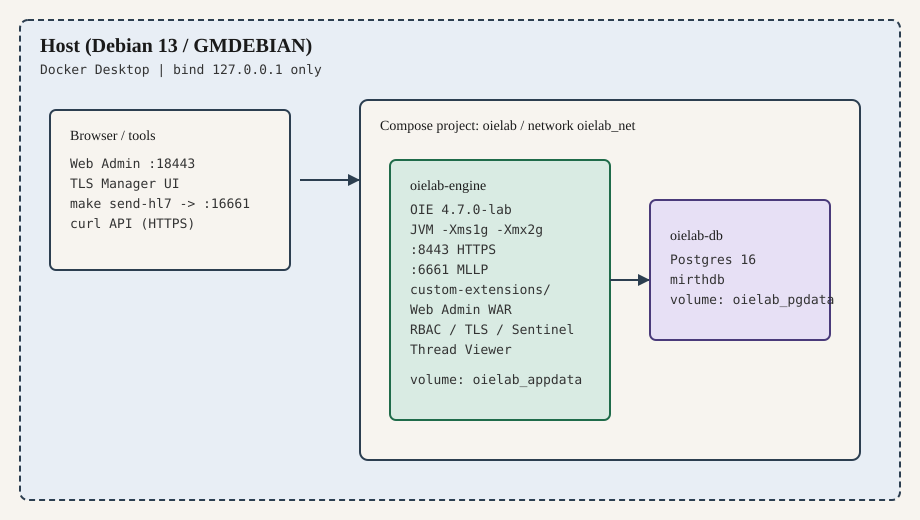
Host ports used (all on 127.0.0.1):
| Host | Container | Role |
|---|---|---|
| 18443 | 8443 | HTTPS Admin / API / Web Admin |
| 16661–16665 | 6661–6665 | HL7 MLLP listeners |
| 18101–18105 | 8101–8105 | HTTP test listeners (reserved) |
Postgres stays on the Compose network (optional debug publish exists in comments only).
4.2 Build flow
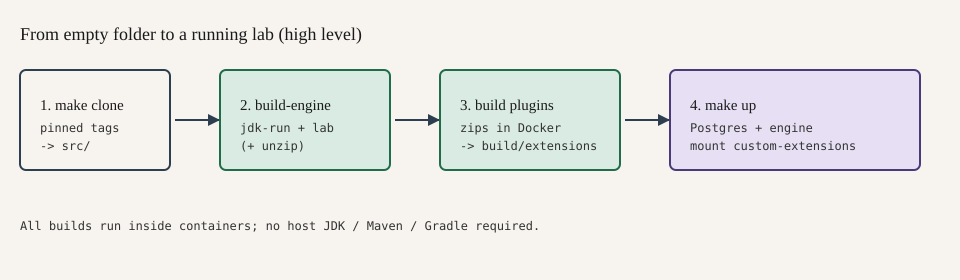
4.3 Plugin learning order
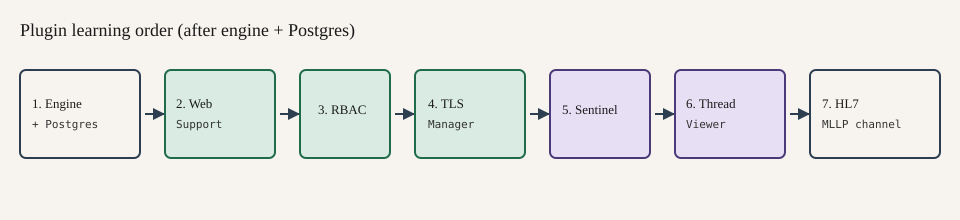
Figure: A practical order after the engine is up. Mermaid source: 04-plugin-order.mmd.
4.4 HL7 path
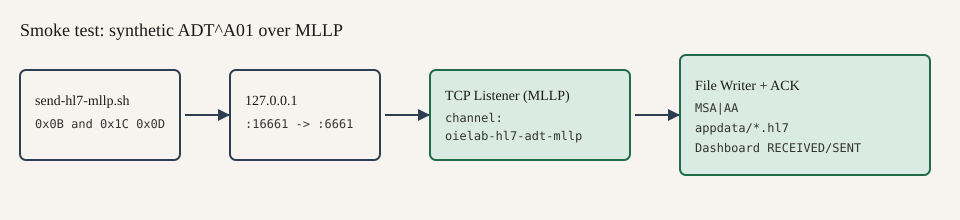
5. Prerequisites
- Docker Engine + Compose v2+ (this lab recorded Compose v5.7.0 under Docker Desktop; any current Compose v2+ CLI is fine)
- Git
- A free stretch of disk for source clones + image layers (several GB)
- Ports 18443 and 16661 free on localhost (plus the other lab ports if you keep the full Compose mapping)
Optional but nice: make, curl, python3 (the HL7 sender script uses Python’s stdlib).
Pinned versions for every repo: meta/versions.md.
Quick command index (happy path)
make check-ports
cp .env.example .env          # then create secrets/
make clone
make build-engine
make up                       # baseline API login
make build-websupport && make build-rbac && make build-tls-manager \
  && make build-sentinel && make build-thread-viewer
make up                       # reload with custom-extensions
# import samples/channels/oielab-hl7-adt-mllp.xml · deploy
make send-hl7
6. Step-by-step: from empty folder to running engine
6.0 Pre-flight
Check that lab ports are free and that Docker answers:
make check-ports   # or inspect 18443 / 16661 yourself
docker version
docker compose version
I also listed existing containers on the host and left them alone. A good lab is a polite neighbour.
6.1 Skeleton, env, secrets
Create the project layout (Makefile, Compose, scripts, .env.example). Then:
cp .env.example .env
# Generate secrets under secrets/ (admin, db, keystore, mirth_properties)
# Keep secrets/ and .env out of git
Important env choices in this lab:
OIE_IMAGE=oielab/engine:4.7.0-labDATABASE=postgresand JDBC URL pointing atoielab-dbVMOPTIONS=-Xms1g,-Xmx2gBIND_ADDR=127.0.0.1
OIE 4.7.0 no longer starts with a default admin/admin on a fresh database. Set the initial admin password through configuration / secrets before first start (this lab used server.initialadminpassword via the engine’s configure-from-env path). Prefer a password of at least 15 characters. The packaged defaults lean that way.
6.2 Clone pinned sources
make clone
This runs scripts/clone.sh, which clones each repository at a fixed tag and checks out the peeled commit. That last detail matters: annotated tags have two SHAs (the tag object and the commit). Pin the commit, or your “detached at tag” checkout will disagree with the pin and look like a mystery.
Repos land under src/.
6.3 Build the engine image
make build-engine
What this does:
docker build --target jdk-runfrom the engine’s own Dockerfile →oielab/engine:4.7.0- Applies a lab overlay (
docker/engine/Dockerfilein the lab repo) that installsunzip→oielab/engine:4.7.0-lab
Why the overlay? The engine’s configure-from-env path unpacks custom-extensions/*.zip with unzip. The stock jdk-run image we built did not include it. Adding unzip in a thin overlay kept the lab smooth without rewriting upstream.
On this machine the first engine build landed in roughly two minutes (Gradle inside BuildKit cache territory) and produced about a 1.1 GB image. Your timing will vary; coffee strength is not a controlled variable.
6.4 Start Postgres + engine (baseline)
make up
make status
Wait until HTTPS answers, then try an API login (header required):
curl -sk -c /tmp/oie-admin.txt -X POST 'https://127.0.0.1:18443/api/users/_login' \
  -H 'Content-Type: application/x-www-form-urlencoded' \
  -H 'X-Requested-With: OpenAPI' \
  -d "username=admin&password=${ADMIN_PASS}"
At this stage /oie-webadmin/ may still be missing; that arrives with Web Support. Baseline success is: engine up, Postgres healthy, API login SUCCESS.
7. Plugins, one by one
Community plugins are not “mystery jars”. Each one is a Git repo with its own licence and build. In this lab, zip files land in build/extensions/ and Compose mounts that folder to the engine’s custom-extensions directory so they install on start.
High-level:
make build-websupport
make build-rbac
make build-tls-manager
make build-sentinel
make build-thread-viewer
# zips appear under build/extensions/
make up   # restart / recreate so extensions load
(Exact build scripts: scripts/build-*.sh.)
7.1 Web Support (+ embedded Web Admin)
- Repos: oie-web-support-plugin + oie-web-client
- Artefact:
websupport-1.3.0.zip - Result:
https://127.0.0.1:18443/oie-webadmin/returns HTTP 200
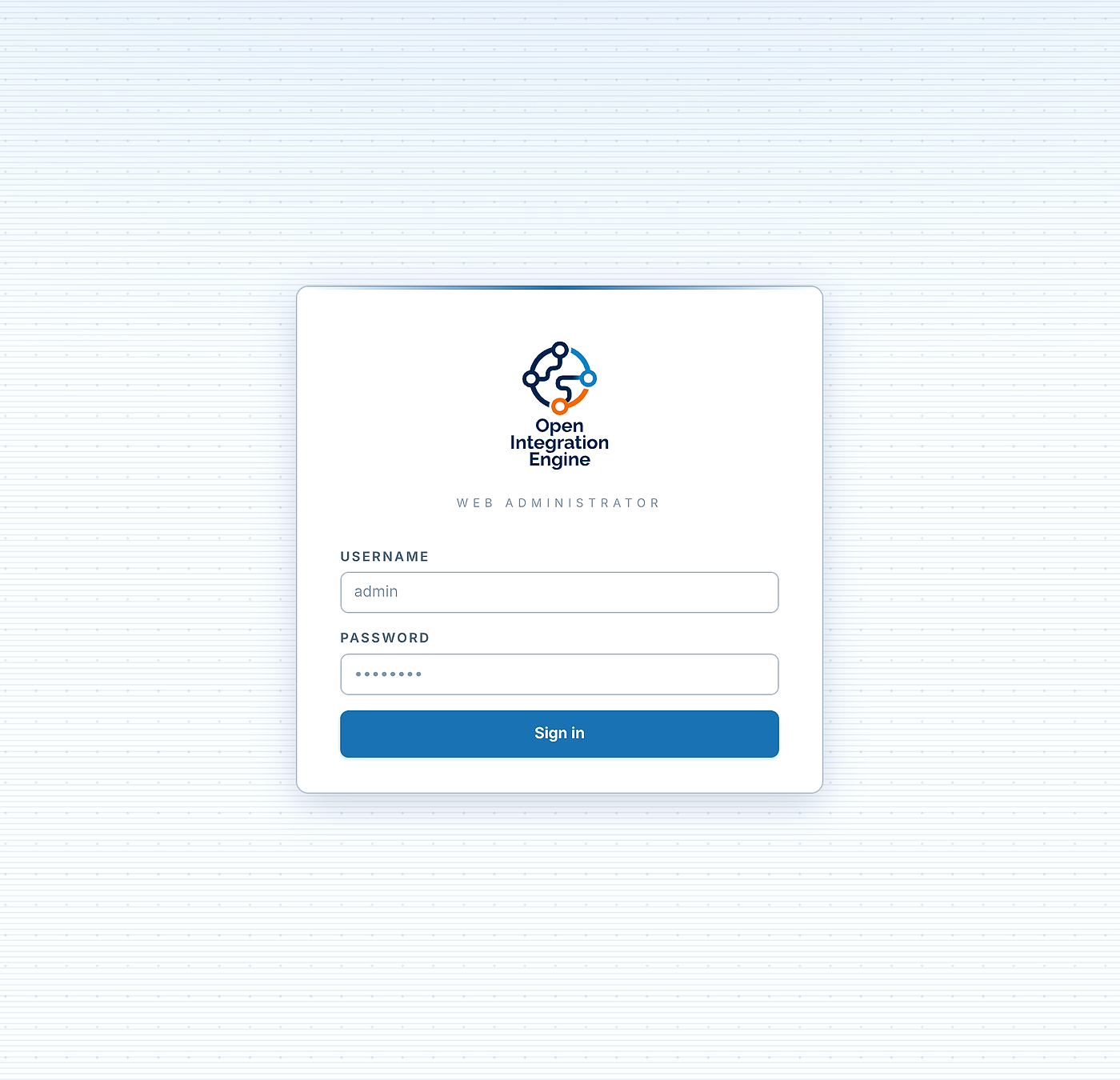
Figure: Web Administrator sign-in. Accept the self-signed certificate warning in the browser; this is a local lab.
Build tip: producing the client WAR needs a JDK jar tool. A pure Node image is not enough; the lab build used a Node + JDK image so npm run build:war could finish.
7.2 Role-Based Access Control (RBAC)
- Repo: diridium-com/role-based-access-control
v1.3.0 - Artefact:
rbac-1.3.0.zip - UI: Web Admin → Settings → Role-Based Access Control (not a separate
/rbac/URL)
We created a viewer role and user for the lab. Deploy as viewer is refused server-side with:
403 Missing permission: deployUndeployChannels
That is the behaviour you want: the UI can hide buttons, and the API still enforces the rule.
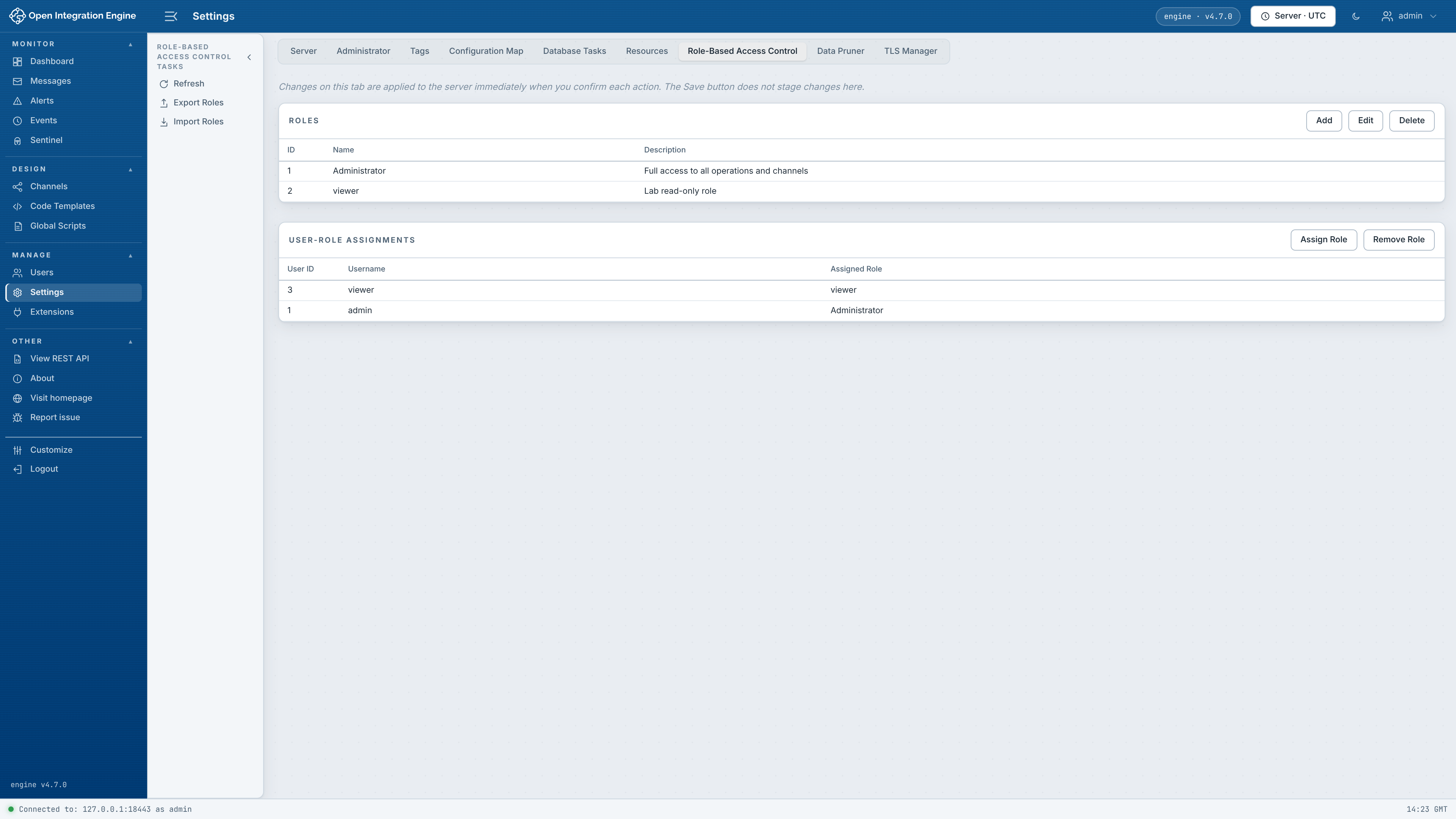
Figure: Roles Administrator and viewer, with assignments.
API note: assigning a role used POST
/api/extensions/rbac/users/{id}/role/{roleId} (a PUT returned 405 in this lab).
7.3 TLS Manager
- Repo: NovaMap-Health/tls-manager-plugin
1.1.1 - UI:
https://127.0.0.1:18443/tls-manager/ - Lab cert: alias
oielab-test-cavia PUT trusted certificates (PEM)
Figure: TLS Manager entry point.
For the path that stayed happy across restarts in this lab, prefer the PEM trusted-certificate API over experimenting with truststore upload flows. See section 10.
7.4 Sentinel
- Repo: gibson9583/oie-sentinel
v1.2.2 - UI: Web Admin → Monitor → Sentinel (then Monitors)
- Lab monitor:
oielab-inactivity-probe: inactivity (noDataForSeconds: 300), no email actions. Quiet monitoring for learning
7.5 Thread Viewer
- Repo: gibson9583/engine-thread-viewer
v1.0.8 - UI: Dashboard lower pane → Thread Viewer tab
- Activate via the extension API, then list threads (this lab saw on the order of 60+ threads: a normal busy JVM, not a laptop fan emergency)
7.6 Extensions overview
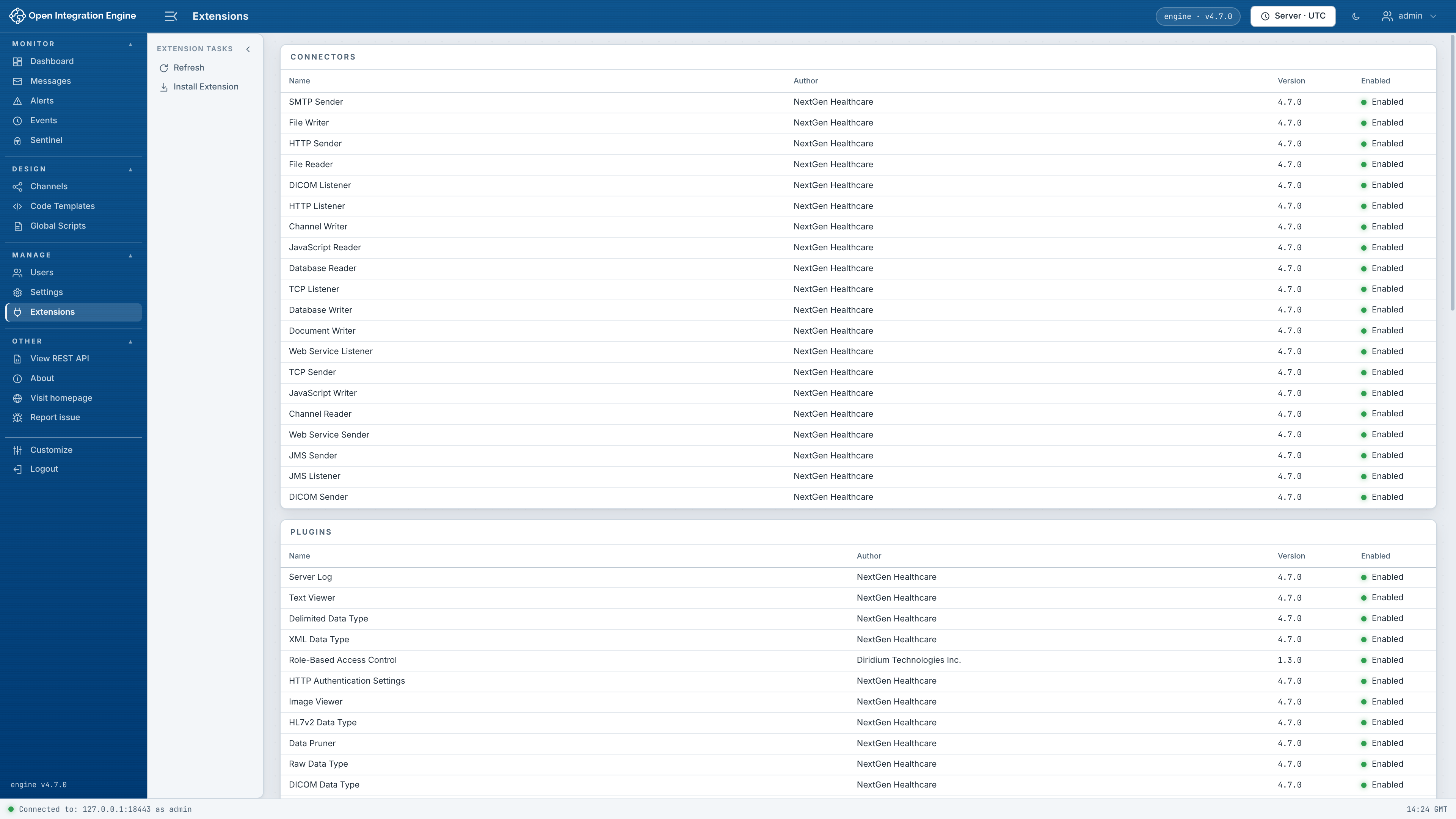
Figure: Connectors and plugins enabled after the lab stack loaded.
8. HL7 ADT over MLLP (the fun bit)
8.1 Channel
Import and deploy the sample channel:
- XML:
samples/channels/oielab-hl7-adt-mllp.xml - Source: TCP Listener, transmission mode MLLP, port 6661 (host 16661)
- Destination: File Writer under
/opt/engine/appdata/oielab-hl7-out - Data type: HL7V2
You can import through the Web Admin (Channels → Import Channel) or POST the XML to /api/channels, then enable and _deploy.
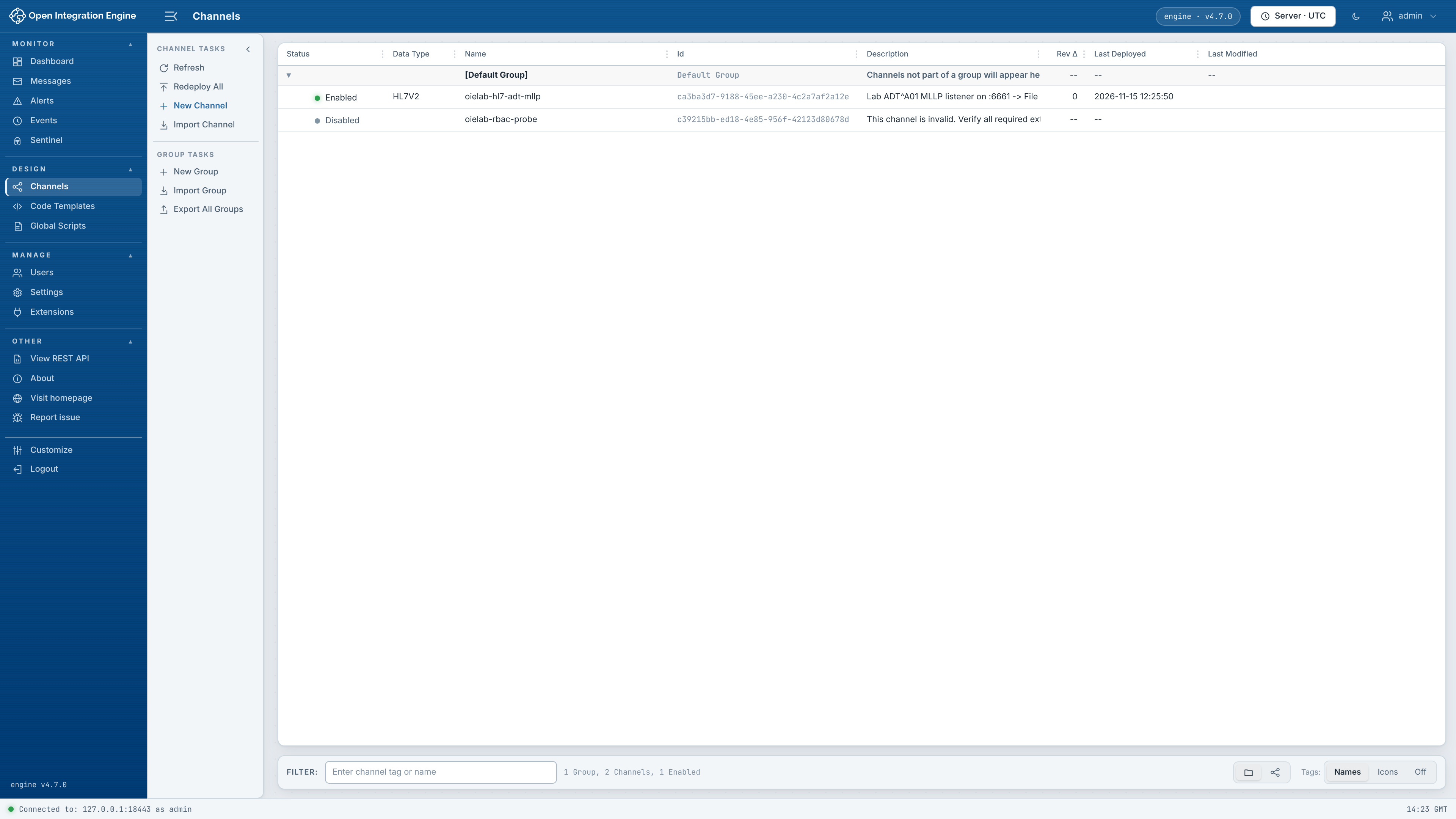
Figure: oielab-hl7-adt-mllp enabled.
8.2 Sample message
Synthetic ADT^A01 (no real patient identifiers that matter outside a demo):
samples/hl7/adt_a01.hl7
8.3 Send
make send-hl7
# or: scripts/send-hl7-mllp.sh
The script frames the message with classic MLLP (0x0B … 0x1C 0x0D) and prints the ACK.
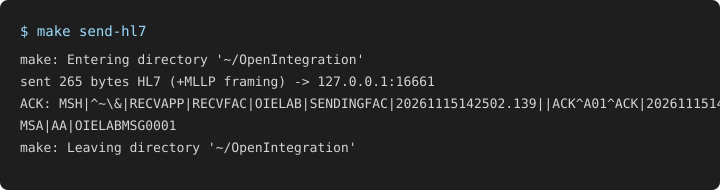
Figure: Terminal-style capture of a successful MSA|AA.
Raw text from one run is also in assets/screenshots/09-send-hl7-output.txt.
8.4 Verify
- Dashboard counters: Received / Sent increase
- Message browser shows ADT-A01
- Inside the container: files under
/opt/engine/appdata/oielab-hl7-out/*.hl7
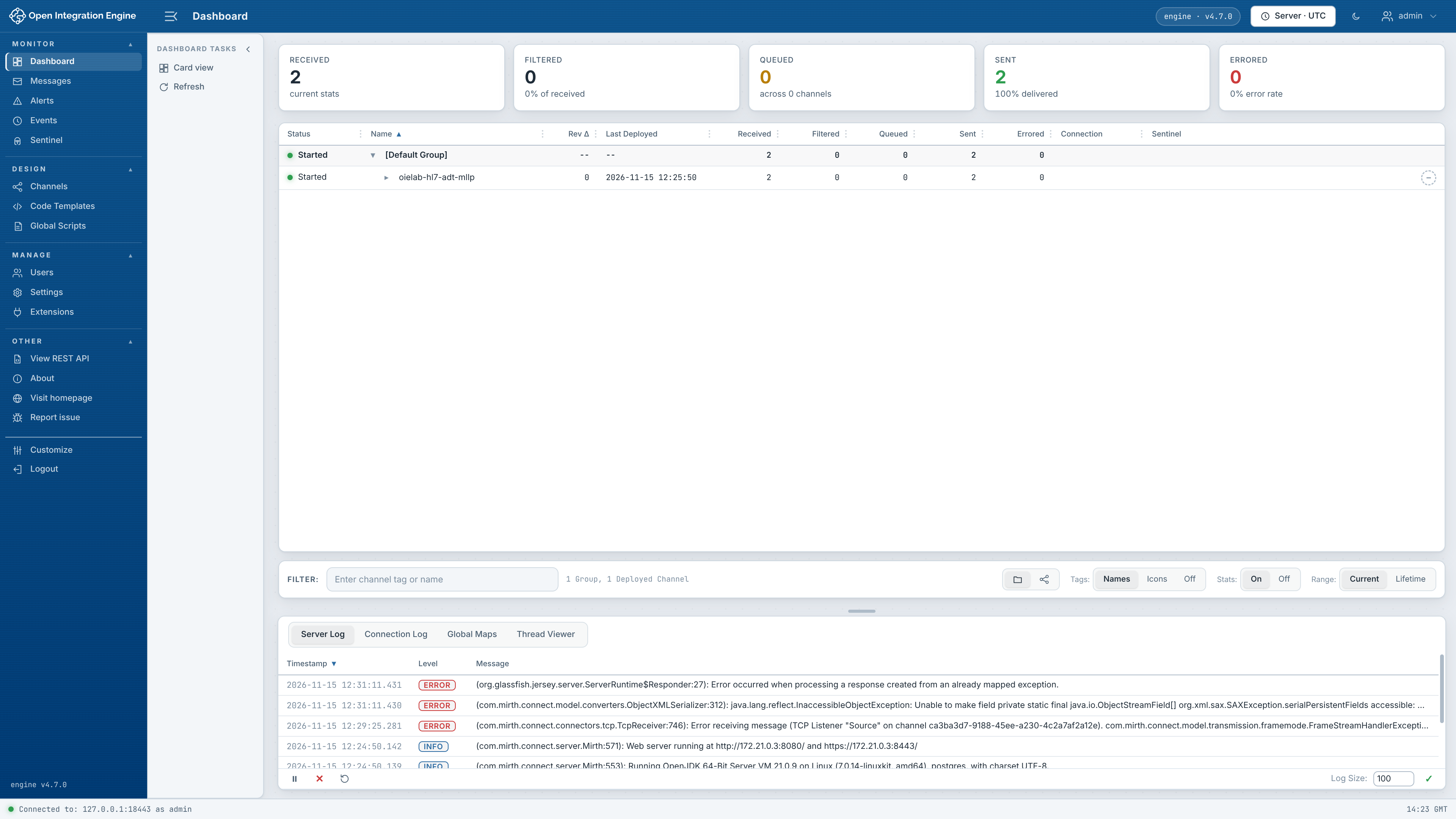
Figure: Dashboard with the HL7 channel Started and counters moving.
9. A short tour of the Web Administrator
Once Web Support is in place:
- Open
https://127.0.0.1:18443/oie-webadmin/ - Sign in as
admin(password from your secrets file; never paste it into a blog) - Explore:
| Area | Why visit |
|---|---|
| Dashboard | Channel state + counters |
| Channels | Import / deploy / edit |
| Messages | Inspect the ADT you just sent |
| Settings → Role-Based Access Control | Roles and assignments |
| Settings → Server | Environment defaults |
| Sentinel | Monitors |
| Extensions | Confirm plugins enabled |
| Thread Viewer (dashboard pane) | JVM thread snapshot |
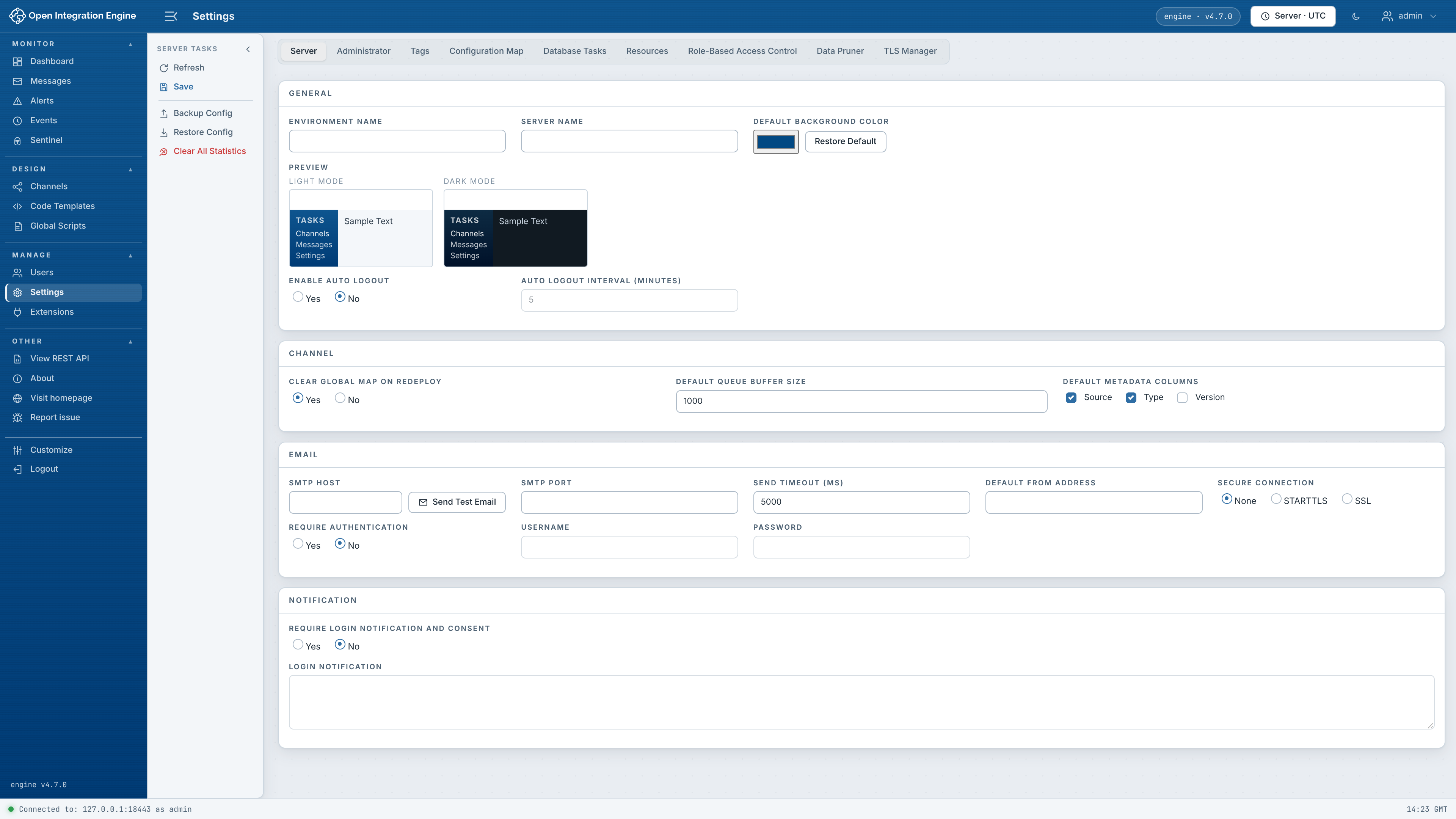
Figure: Server settings tab: a calm place after a successful start.
The UI stack is modern (React, Tailwind, Radix, Monaco) and sits on the same REST surface the classic Administrator uses. Managing channels from the browser was, frankly, a pleasant surprise for a “serious HL7 engine” weekend.
10. Tips we met on the road (and how we handled them)
These are written as lab tips, not as judgements on any project. Every stack has learning curves; writing them down is how the next person moves faster.
Tip A: Pin peeled commits for annotated tags
git ls-remote --tags --refs can show the tag object SHA. A shallow clone of the tag checks out the commit. If your pin file stores the tag object, verification fails.
Handle it: resolve tag^{} (peeled commit) and store that SHA. Our scripts/clone.sh checks rev-parse HEAD against the pin.
Tip B: WAR builds need jar
Building the Web Client WAR inside a Node-only container stops when jar is missing.
Handle it: use an image that includes a JDK (or install openjdk-*-jdk-headless in the builder).
Tip C: custom-extensions expects unzip
With zip files mounted into custom-extensions, startup expects unzip to be present.
Handle it: lab image oielab/engine:4.7.0-lab adds unzip on top of 4.7.0.
Tip D: Password length
Short lab passwords can be rejected by policy (this lab settled on ≥ 15 characters).
Handle it: generate long secrets up front; keep them in secrets/.
Tip E: RBAC role assignment method
Role assignment succeeded with POST; PUT returned 405.
Handle it: follow the plugin’s API (or inspect with the Web Admin network tab).
Tip F: TLS certificates across restarts
In this lab, loading a test CA through the trusted certificates (PEM) path kept the engine happy across restarts. We also tried alternate truststore upload sequences; for this lab, the PEM path was the one that stayed steady across restarts.
Handle it for learning: prefer PEM trusted certificates for a simple lab CA; keep a database backup before trying other truststore flows.
Tip G: API clients need X-Requested-With
Without it, some calls misbehave or return unhelpful errors.
Handle it: always send X-Requested-With: OpenAPI (or the value your client docs specify) on REST calls.
Tip H: Server Log ERROR lines during MLLP smoke tests
After a clean make send-hl7, Dashboard counters can read RECEIVED / SENT with ERRORED: 0 while the Server Log still shows a red FrameStreamHandlerException (sometimes with InaccessibleObjectException underneath). That often means something poked the TCP listener without proper MLLP framing (a port scan, a half-open connect, or a plain TCP probe).
Handle it: treat framed ADT → MSA|AA plus rising counters as the acceptance signal. Clear the log if you want a tidy screenshot; the red lines alone do not mean the channel failed.
11. Acceptance checklist
| # | Check | Lab result |
|---|---|---|
| 1 | Clone → build → up path documented | Yes |
| 2 | Other host containers left running | Yes |
| 3 | Web Admin opens and accepts admin login | Yes |
| 4 | Lab plugins enabled | Web Support, RBAC, TLS Manager, Sentinel, Thread Viewer |
| 5 | viewer cannot deploy | 403 as expected |
| 6 | MLLP ADT → dashboard + file | MSA|AA |
| 7 | TLS Manager UI + test CA | Yes (oielab-test-ca) |
| 8 | Sentinel inactivity monitor | Yes (no email) |
| 9 | Thread Viewer lists threads | Yes |
| 10 | make down keeps volumes; reset scoped to oielab_* | Verified down/up; reset filters reviewed |
| 11 | Docs + notes | This article + lab repo README |
12. Suggestions, questions, and next ideas
I am open to feedback. A few ideas I have not expanded in this lab (on purpose):
- Standalone Web Client on a separate port
- Swing Administrator comparison
- Extra community plugins (channel history, source search, cache manager, …)
- A second destination (HTTP or DB) beside the File Writer
If you publish your own fork of this lab, I would love to hear which tip saved you the most time. Tip A (tag peeling) is my quiet favourite.
13. References
Project and community
- Open Integration Engine
- OIE Compare page
- OIE plugins directory
- OIE 4.7.0 release notes (project news)
- Commercial support vendors (community list)
- Eclipse project presence
Source repositories used in this lab
Standards / background reading
- HL7 version 2 product suite
- MLLP framing (start block
0x0B, end block0x1C 0x0D). See also engine TCP / MLLP mode docs in the OIE tree
Local lab artefacts
- Version pins:
meta/versions.md - Machine notes:
meta/system-info.md - Diagrams: for example
lab architectureandplugin order - Screenshots: captions in
CAPTIONS.md· exampledashboard
Closing
Debian on the metal, Docker for the moving parts, OIE for the messages, and a synthetic ADT for the smile when MSA|AA comes back. That is the whole story.
Open engines with mature roots keep the ecosystem honest. If this lab helps you learn, or helps your team see that “we can run this ourselves” is a real option, then the weekend did its job.
Thanks for reading. Questions and suggestions welcome.
Gus